



AAR: Accessibility Audit and Remediation
Microwaved Kitty Studio
$34.22
$48.88
30%OFF
(no ratings)
Jump AssetStore
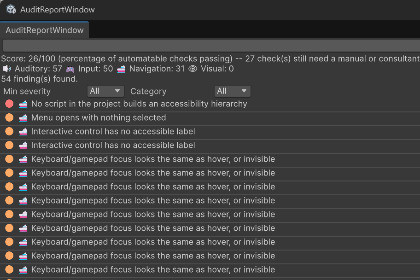
A Lighthouse-style accessibility auditor for Unity — scores your project, shows you the problem through your players' eyes, and fixes what's safely fixable automatically.Works identically under Built-in, URP, and HDRP. The audit rules never touch rendering -- they inspect scene/project assets directly, so pipeline choice is irrelevant. Simulation View (colour vision, low vision, contrast heat-map, etc.) captures an already-rendered frame via Camera.Render() rather than hooking into any pipeline -- zero pipeline-specific code or shaders.Most developers aren't disabled themselves and have no intuition for what breaks a game for someone who is. A contrast checker is a weekend's worth of code. Knowing that a Selectable with Transition.None is invisible to a keyboard player, that a screen reader announces nothing without a real AccessibilityHierarchy, or which of Steam's 19 accessibility questionnaire fields your project actually satisfies — that's the part worth buying instead of building yourself. AAR encodes that judgment directly into the tool. AAR never claims compliance. No score here means "this game is accessible" — not EAA, not WCAG, not "certified." The score is always labelled percentage of automatable checks passing, shown next to a count of checks that still need a human or consultant review. Automating what's automatable and being honest about what isn't is the whole design.Getting startedThree ways to run AAR, depending on who's driving. 1. Manual — a developer, in the EditorWindow ▸ Accessibility ▸ Audit Report — open the main window and click Run Audit against your active scene.Window ▸ Accessibility ▸ Rule Config — turn off any check that doesn't apply to your project, or tune its thresholds.Window ▸ Accessibility ▸ Manual Checklist — work through the checks a static scan can't make for you.Window ▸ Accessibility ▸ Simulation View — see the problem, not just read about it: colour-vision deficiency, low vision, field loss, a contrast heat-map, and a focus-order overlay, side by side with the original.2. CI/CD — a build pipeline - Both CLI entry points run headless via -executeMethod and set a real process exit code, so a pipeline step can gate a build on the result:A demo scene deliberately full of realistic failures ships under Assets/AAR/Samples/BrokenMenuDemo.unity if you want to see every rule fire before pointing AAR at your own project.📷Unity.exe -batchmode -quit -projectPath . -logFile - \-executeMethod AAR.Editor.Tools.CliRunner.Report \-aarScene Assets/Scenes/MainMenu.unity \-aarFailUnder 80Exit code 0 if the score is at or above the threshold, 1 (via EditorApplication.Exit(1)) if it isn't — fail the step on 1. AutoFixAll runs the same way and additionally applies every safe, reversible auto-fix before re-scoring, if you'd rather have CI apply the mechanical fixes than block on them. -aarOutput writes the full JSON report alongside the console output for archiving as a build artifact. 3. Agentic — an AI coding assistant working in the same projectThe same CLI, aimed at a model instead of a pipeline. Point an agent at the class name and nothing else — -executeMethod AAR.Editor.Tools.CliRunner.Help prints the full usage guide (both commands, every flag, and the operational gotchas a real cold-start agent run actually hit, like the two-Unity-processes-can't-share-a-project conflict) so it can bootstrap itself without a hand-written prompt. From there: Report to see what's wrong with real object paths and fix instructions per finding, AutoFixAll to clear the mechanical ones in one pass, then the agent applies real, considered fixes for what's left — a real label, a real accessible colour, a real wired-up control, even a real non-colour focus cue generated the same way Unity's own Inspector would — using the same reversibility guarantees a human clicking Auto-fix gets, not placeholder content.What it checks today29 automated rules across four categories, run from inside the Editor with no Play Mode required:Category Examples Visual Text contrast below WCAG threshold, text below the AGI Clear Text size floor, decorative/script fonts on UI text, focus states that rely on colour alone, colours that collide under colour-blindness simulation, text baked into an image instead of a real label, camera FOV with no settings binding Navigation No accessible label on a Button/Toggle, duplicate labels in the same scene, placeholder text left in ("Button", "New Text"), no visible focus indicator, dead ends and mismatched order in explicit keyboard/gamepad navigation, nothing selected when a menu opens, no screen-reader hierarchy anywhere in the project Auditory Spatial audio cues with no visual counterpart, no mono-downmix option, dialogue clips with no subtitle, incomplete audio mixer channel coverage Input No control-remapping support, no look/aim axis inversion option, legacy Input Manager usage where the new Input System is available, motion-based input with no alternative Every finding ships with real, specific "who this affects" copy — a real person and a real consequence, not a generic disclaimer.What it fixes automaticallyWhere a fix is genuinely unambiguous, AAR fixes it for you with full Undo support: creates the missing label field, sets firstSelectedGameObject, raises font size to the exact AGI threshold, generates real accessibility-hierarchy nodes with label/role inferred from your own UI text, and — for a focus state that only distinguishes itself by colour — switches the control to an Animation transition with a real scale-punch cue, generated the same way Unity's own "Auto Generate Animation" button would build it. AAR never guesses content it isn't sure of — an obviously-empty label field beats a wrong guessed one that ships unnoticed. Where a fix needs a real design decision (recolouring a palette, redesigning a navigation graph, writing a real settings screen), AAR tells you exactly what's wrong and why, and stops there.Simulation views — see it through your players' eyesA sighted developer with steady hands and full colour vision literally cannot perceive most of what this tool flags. Window ▸ Accessibility ▸ Simulation View closes that gap: point it at any Camera, hit Refresh, and see the original next to the simulated version.View What it shows Colour vision - Protanopia, deuteranopia, tritanopia, or achromatopsia — the exact scene, recoloured the way that colour-vision deficiency would actually render it. Low vision - Progressive acuity loss, from 20/40 to 20/2400, blurred to a radius derived from the real minimum-angle-of-resolution relationship for each Snellen level — not an arbitrary slider. Field loss - Tunnel vision (a 20° visual field, the U.S. legal-blindness threshold) or central scotoma (a ~10° blind spot at the centre) — real clinical/legal reference points, not guessed radii. Contrast heat-map - Every text element on screen tinted red or green by its actual measured contrast ratio — the same math the audit's contrast rules use, so the heat-map can never disagree with a real finding. Focus-order overlay - Arrows drawn over your UI following every explicit keyboard/gamepad navigation link — the "tab order jumps across the screen for no reason" problem, made visible instead of described.Text-Only Mode - a live toggle (not a captured view) that hides every non-text visual in the scene so you can check whether your UI still communicates on text alone, then restores everything exactly as it was. Works identically under Built-in, URP, and HDRP — the whole feature is built on capturing an already-rendered frame rather than hooking into any specific render pipeline, so there's nothing pipeline-specific to break.Beyond the automated rulesManual Checklist — a persistent, tri-state (Yes / No / Won't Fix) checklist for the accessibility questions no static scan can answer: gameplay difficulty, save design, input device coverage, and all 19 fields of the Steam accessibility questionnaire, each with real "why this matters" and "how to verify" guidance.Rule Config window — enable/disable individual rules and tune their thresholds per project; export/import that configuration as a plain JSON file so a team can share one house style instead of everyone re-tuning their own Inspector.Reports — export a full audit as JSON (for diffing or CI), a self-contained HTML page (to hand to a producer or publisher), or an AGI tag coverage summary (which of your rules map to which AGI tag, and whether they're currently passing).CLI for CI and for coding agents — -executeMethod AAR.Editor.Tools.CliRunner.Report / .AutoFixAll, both scriptable from the command line with a -aarFailUnder build-failing threshold for CI. Run .Help for the full usage guide, discoverable cold with no extra briefing.What's on the roadmap, not shipped yet. Being upfront about this rather than letting a demo imply otherwise:Play-mode probe — runtime contrast sampling against the real framebuffer, and photosensitivity/seizure-risk detection per WCAG 2.3.1. Nothing in the play-mode column is built yet; every rule above runs statically, in the Editor, without pressing Play.PDF export and UI Toolkit scanning (every rule today scans classic Unity UI/uGUI; UI Toolkit screens aren't covered yet — and if your project's UI is UI Toolkit only, today's score won't reflect that: nothing yet warns you a scene's real UI wasn't inspected at all).Two Simulation View filters still missing for the same honesty reason nothing above is a guess: cataract haze and contrast reduction don't have a primary-source reference for their intensity the way the shipped low-vision/field-loss views do, so they're not built rather than built on a guessed number. Found a false positive, or a finding whose copy doesn't make sense? Open an issue — a wrong finding is worse than a missing one, and getting the false-positive rate down is an ongoing priority, not a one-time pass. Got a feature request or a suggestion? microwavedkittystudio@gmail.comRequires Unity 6000.5 or later.Works out of the box with classic Unity UI (uGUI). No rule has a hard dependency on an optional package — nothing here breaks your import if Input System, TextMeshPro, Cinemachine, URP, HDRP, or the Accessibility module aren't installed; the relevant checks simply skip their auto-fix and note it.Simulation View works identically under Built-in, URP, and HDRP — built on capturing an already-rendered frame rather than hooking into any specific render pipeline.Editor-only tooling; every asmdef here is Editor-scoped, so none of it reaches a player build.Includes a demo scene (`Assets/AAR/Samples/BrokenMenuDemo.unity`) deliberately full of realistic failures, to see every rule fire before pointing AAR at your own project.CLI entry points (`AAR.Editor.Tools.CliRunner.Report` / `.AutoFixAll`) run headless via `-executeMethod` for CI/CD pipelines or coding-agent workflows.Parts of this asset — code, tests, and documentation including this README — were written with AI coding assistance, directed and reviewed by the developer throughout. AI was not used as a substitute for the judgment the product is built on:Every accessibility threshold is checked against a primary source before it reaches code, not taken from an AI summary. - Contrast ratios and text-size minimums are verified against the AGI (Accessible Games Initiative) Tags and Criteria document; photosensitivity thresholds against WCAG 2.3.1; colour-vision-deficiency transforms against the published Machado/Oliveira/Fernandes model; low-vision acuity and field-loss figures against standard optometric and legal (SSA) definitions. At least one figure that recurred identically across multiple AI-generated search summaries was rejected outright after its supposed primary source turned out not to actually state it, and a properly-sourced alternative was derived instead.Generated code is reviewed and tested, not shipped on trust - The full automated test suite (440+ tests) runs before every change is considered done. AI-written code has also been caught and corrected mid-development — including a real compile error in one AutoFix code-generation template, found by actually running the tool's own agentic CLI workflow against a third-party Unity project rather than only this package's own demo scene.The product has been dogfooded against real, external Unity projects - (Unity's own FPS Microgame and 2D Platformer Microgame, and the Boss Room multiplayer co-op sample), not only the bundled demo scene, specifically to catch false positives and generated-code bugs before release — including a real, silent coverage gap found this way (Screen Space - Overlay canvases weren't being captured by the Simulation View at all) and fixed before shipping.Every "who this affects" explanation and every rule's rationale was written to be checked against the cited source, not generated as generic filler text.