

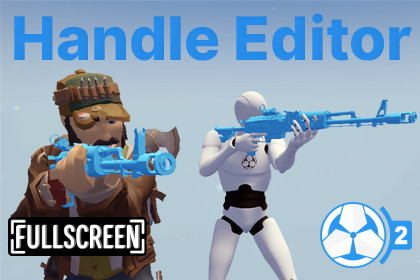
Retarget, create, and edit Game Creator 2 Handles with an in-editor preview. Easily move weapon and prop attachments between characters without repeated Play Mode testing.Handle Editor for Game Creator 2Changing your character model can cause a lot of problems with weapons and other attachments. A Handle that was positioned correctly on one character can point in a completely wrong direction when used on another character.Handle Editor makes it easy to retarget, create, and edit Game Creator 2 Handles.Retarget an existing Handle from one Humanoid character to another, preview the result before using it, and fine-tune the position and rotation without entering Play Mode.Old Character + Old Handle → New Character → Retarget→ Preview → Adjust → Retargeted HandleHandle Editor works great for retargeting Game Creator 2 Shooter 2 weapons to your own characters, such as Synty characters, but Handle Editor also works with any Game Creator 2 Handle used to attach weapons, props, equipment, or other objects to a character.Retarget Handles Between CharactersWhen you change your character model, the old Handle usually won't line up correctly anymore.Instead of manually adjusting every Handle value, Handle Editor can retarget the Handle from the old character to the new one.Assign the old character, old Handle, and new character, then create a new Handle for the new model.Handle Editor transfers the attachment position and rotation based on the Humanoid bones used by the original character.Retarget Handles between Humanoid charactersKeep the original Handle unchangedRetain Handle conditions and bone selectionsAutomatically create a new Handle for the new characterReject unsupported dynamic offsets instead of creating incorrect resultsSee The Result Before Play ModeNo more entering Play Mode, checking the weapon, exiting Unity runtime, changing the Handle, and repeating the process.Handle Editor includes a dedicated Handle Preview stage where you can see the attached model directly on the character.When retargeting a Handle, you can see both the old and new character at the same time. This makes it easy to compare how the attachment looked on the original character and adjust the new Handle until it looks right.Preview the attachment, make an adjustment, and see the result immediately.Preview Handles outside Play ModeCompare old and new characters when retargetingPreview weapons, props, and other attached modelsPreview using an animationAdjust position and rotation while previewingEasily Adjust Handle PositionsFine-tune your Handle without manually editing individual entries.Use exact Position and Rotation values when you know the offset you need, or use the nudge controls for quick adjustments.Choose how much each nudge should move or rotate the Handle, then use the -X, +X, -Y, +Y, -Z, and +Z buttons to quickly find the correct position.See the result immediately in the preview stage.Position and rotation controlsAdjustable nudge amountsX, Y, and Z adjustmentsLive preview while adjustingApply adjustments to all Handle entriesCreate New HandlesCreate a Handle for a character without starting from an existing asset.You can create an empty Handle for a model, or start from an existing Handle and use it as the starting point for a new one.This makes it easier to create new attachment setups while keeping your existing Handle assets untouched.Create Handles from scratchStart from an existing HandleApply position and rotation adjustmentsCreate Handles for any Humanoid characterEdit Existing HandlesAlready have a Handle that is almost correct?Open it in Handle Editor and adjust the attachment without manually changing each Handle entry.The changes are previewed first and only applied when you select Save.Edit existing HandlesPreview changes before savingSave changes directly to the selected HandlePerfect For Shooter 2 WeaponsHandle Editor is especially useful when using Game Creator 2 Shooter 2 with custom character models.For example, you may have a weapon set up for the Game Creator Mannequin, but want to use the same weapons with a Synty character.Instead of manually fixing every weapon Handle for the new character, simply retarget the existing Handles to the new Humanoid model.This can save a lot of manual work when moving an existing weapon setup to a new character.Free Hand IKWhen working with two-handed weapons, use the optional Free Hand IK tools to help position the secondary hand.Select the left or right hand, adjust the target position and rotation, and preview the result on the attached model.The final Free Hand IK values will be exported to a text file so they can be copied into the corresponding Free Hand settings of a Shooter 2 Sight.Works With More Than WeaponsGame Creator Handles can be used for many different types of character attachments, and Handle Editor can be used with them as well.Use it for props, equipment, tools, accessories, or anything else you want to attach to a character using a Game Creator Handle.📦 What's Included✔ Full Source Code✔ Quick Start Guide✔ Documentation🔗 Links🌐 Website📖 Documentation📚 Setup Guide💬 DiscordRequires Game Creator 2Retarget Handles between different Humanoid character modelsCreate new Handles from scratch or from an existing HandleEdit existing Handles and apply adjustments to all entriesPreview attached models directly in the Scene ViewCompare the original and retargeted Handle during retargetingPosition and rotation adjustments with configurable nudge controlsSupports constant position and Euler rotation Handle offsetsPreserves Handle conditions and bone selections when retargetingOptional Free Hand IK preview for secondary hand placementFree Hand IK values can be exported for use with Shooter 2 Sight assetsOriginal Handles are not modified during retargetingRetargetingHandle retargeting uses Unity's Humanoid bone structure to transfer attachment offsets between different character models. The accuracy of the result depends on the destination character's rig, bone orientations, proportions, and hand placement, so results may vary between models.Handle retargeting has been tested with Synty character packs, including POLYGON and Sidekick, as well as a range of other humanoid characters from the Unity Asset Store. While many compatible characters retarget well, some models may require small position or rotation adjustments.The built-in Preview Stage and nudge controls make it easy to check the result and fine-tune the Handle for the destination character.CompatibilityHandle Editor is intended for Humanoid Game Creator 2 Characters. Both the source and destination character models must have valid Humanoid Animators.The tool works with Game Creator 2 Handles used for weapons, props, equipment, tools, accessories, and other character attachments.