
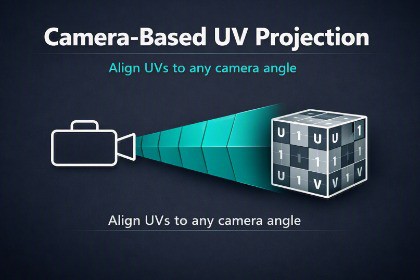
The UV Projector Tool is a custom Unity Editor utility that projects UVs onto MeshFilter or ProBuilder objects using either a specified camera or the active Scene View.The UV Projector Tool is a custom Unity Editor utility that projects UVs onto MeshFilter or ProBuilder objects using either a specified camera or the active Scene View. It provides a fast, Project From View workflow directly inside the Unity Editor.This tool is designed for:• Trim sheet workflows• Decal projection• Quick planar UV mapping• ProBuilder face-selection UV projection• SceneView-driven UV alignmentThe tool writes UVs to UV1, ensuring full compatibility with the ProBuilder UV Editor.UV Projector Tool — READMERequirementsUnity Editor 2021.3 or newer Fully compatible with Unity 2021 LTS, 2022 LTS, and Unity 6 (6000.x).• Windows & macOS## ProBuilder dependencyUV Projector works in two modes:- **Without ProBuilder (default)**- Supports standard `MeshFilter` meshes.- You can project UVs from a camera or Scene view onto any mesh.- **With ProBuilder installed**- Enables ProBuilder-specific features:- Projecting UVs onto **ProBuilderMesh**- Projecting onto **selected faces only**Installation notes- ProBuilder is **optional at compile time**.- If ProBuilder is not installed:- The UV Projector window still works for `MeshFilter` meshes.- If ProBuilder is installed via the Package Manager:- The tool automatically detects it- MacOS users dock the UV Projector window firstFeatures• Camera-based UV projection Projects UVs using the active SceneView camera or a user-assigned camera.• ProBuilder support Works with both standard MeshFilters and ProBuilderMesh objects.• Selected-faces mode Optionally project UVs only onto selected ProBuilder faces.• Non-destructive workflow Only modifies UVs — geometry remains untouched.• Clean Editor-only DLL No runtime scripts, no bloat, no build impact.OverviewThe UV Projector Tool is a custom Unity Editor utility that projects UVs onto MeshFilter or ProBuilder objects using either a specified camera or the active Scene View. It provides a fast, Project From View workflow directly inside the Unity Editor.This tool is designed for:• Trim sheet workflows• Decal projection• Quick planar UV mapping• ProBuilder face-selection UV projection• SceneView-driven UV alignmentThe tool writes UVs to UV1, ensuring full compatibility with the ProBuilder UV Editor.3. Open the toolOnce imported, open the tool from the Unity menu:Tools → ProBuilder → UV Projector ToolYou can dock this window anywhere in the Unity Editor, and MacOS users suggested to do this first.Using the Tool1. Assign a target objectYou can project UVs onto:• A MeshFilter• A ProBuilderMeshAssign one of these in the tool window:• MeshFilter — for standard Unity meshes• ProBuilder Mesh — for ProBuilder geometryNote: Only one target needs to be assigned at a time.2. (Optional) Assign a Projection CameraYou may assign a camera to control the projection direction.If you leave this field empty:The tool will automatically use the active Scene View camera.This is ideal for “Project From View” workflows.3. (Optional) Enable Face-Selection-OnlyIf the target is a ProBuilder mesh, you can enable:Project Selected Faces OnlyThis will project UVs only onto the currently selected faces in the ProBuilder editor.4. Click “Project UVs”Press the button to apply the projection.The tool will:• Convert world positions into clip-space• Normalize them into UV coordinates• Write them into UV1• Refresh the mesh• Mark it dirty for savingHow Projection WorksProjection CameraUVs are generated by projecting vertices through the camera’s:• worldToCameraMatrix• projectionMatrixThis produces a normalized UV coordinate in the range 0–1.Scene View FallbackIf no camera is assigned, the tool uses:SceneView.lastActiveSceneView.cameraThis allows intuitive “look at the object → project UVs” workflows.ProBuilder CompatibilityThis tool is fully compatible with ProBuilder 6.0.9.• UVs are written using SetUVs(1, List)• UVs are read using GetUVs(1, List)• All UVs are stored in UV1• UV2–UV4 are intentionally not used (PB marks them read-only)Limitations• Only UV1 is editable in the ProBuilder UV Editor• UV2–UV4 are not used by this tool• MeshFilter projection does not support face-selection mode• Orthographic projection depends on the camera’s settings• Very large meshes may require manual UV scalingRecommended Workflow1. Frame your object in the Scene View2. Select faces (optional, ProBuilder only)3. Open UV Projector Tool4. Assign your target mesh5. Leave Projection Camera empty (Scene View fallback)6. Click Project UVs7. Fine-tune in the ProBuilder UV Editor if neededDebug/improve