


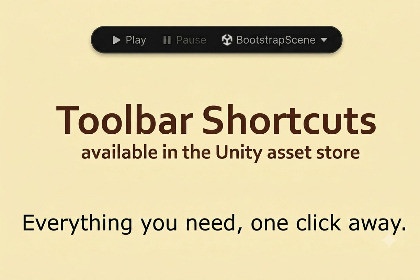
Toolbar Shortcuts extends the Unity 6 main toolbar.Toolbar ShortcutsPublisher: LumenwakeUnity: 6000.3 or newerType: Editor-only toolWORKS ONLY WITH UNITY 6.3 OR NEWER!Toolbar Shortcuts extends the Unity 6.3 main toolbar with:- Bootstrap Play - custom Play / Pause / scene target controls (`ToolbarShortcuts/Play`)- Toolbar shortcuts - configurable buttons on the left and right of the main toolbar- Shortcuts Window - panel for shortcuts with Window or Both placementQuick start1. Import the package into your project.2. Open Tools → Toolbar Shortcuts → Welcome (shown on first import).3. Add your bootstrap scene as the first entry in File → Build Settings.4. Click Setup in the welcome window.Setup hides the default Play controls, enables package toolbar items, and opens the Shortcuts Window above the Inspector when possible.SupportDiscord community: https://discord.gg/A3XWVXKGhXConfiguration`ToolbarShortcutsConfig` in `Assets/Lumenake/Resources/ToolbarShortcutsConfig.asset` (included) |Optional user copy `Assets/Lumenwake/Settings/ToolbarShortcutsConfig.asset` via Assets → Create → ToolbarShortcuts → Toolbar Shortcuts ConfigBootstrapConfig (optional) via Assets → Create → ToolbarShortcuts → Bootstrap Config in `Resources/`Edit shortcuts in the Inspector when `ToolbarShortcutsConfig` is selected. Use Tools → Toolbar Shortcuts → Refresh Toolbar after changes.Menu reference- Tools → Toolbar Shortcuts → Welcome- Tools → Toolbar Shortcuts → Setup Toolbar- Tools → Toolbar Shortcuts → Shortcuts Window- Tools → Toolbar Shortcuts → Refresh Toolbar- Tools → Toolbar Shortcuts → Reset Setup State