



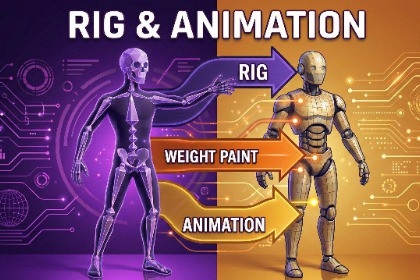
Transfer rig & animations from one FBX to another with a single click! Perfect for retargeting Mixamo animations to custom characters. Requires Blender (free).RIG TRANSFER TOOLTransfer rig and animations from one FBX to another with a single click!PERFECT FOR:• Retargeting Mixamo animations to custom characters• Applying mocap data to game-ready models• Transferring rigs between similar meshes• Quick character animation setupFEATURES:✓ One-click rig and animation transfer✓ Transfers ALL animation clips (not just one!)✓ Automatic facial animation removal✓ Facial bone weights merged to head bone✓ Works with similar topology meshes✓ Clean Unity Editor integration✓ Real-time progress logging✓ Auto-detects Blender installationHOW IT WORKS:1. Open Tools > Rig Transfer Tool2. Select Source FBX (with rig and animations)3. Select Target FBX (mesh only)4. Click "Transfer Rig & Animation"5. Done! Your new rigged model is readyREQUIREMENTS:• Unity 2020.3 or later• Blender 3.0+ (free download from blender.org)• Windows, macOS, or LinuxWHY BLENDER?This tool uses Blender's powerful FBX processing in the background. Blender is free, open-source, and handles complex rig transfers reliably.SUPPORT:Email: tekrex3060@gmail.comCreated by CodingCannonTECHNICAL SPECIFICATIONS:Supported Unity Versions: 2020.3+Supported Platforms: Windows, macOS, LinuxDependencies: Blender 3.0+ (free, external)File Formats:• Input: FBX• Output: FBXFeatures:• Editor tool (Tools menu)• Runs Blender in background (headless)• No runtime dependencies• No impact on build sizePackage Contents:• RigTransferWindow.cs - Unity Editor GUI• rig_transfer_blender.py - Blender processing script• Documentation and License filesProcessing:• Vertex weight transfer via nearest-vertex matching• NLA track-based animation export• Automatic facial bone detection and removal• Head bone weight consolidationThe documentation and the UI/UX