




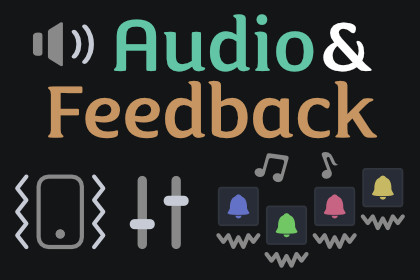
Attach a feedback profile to a USS class or element type once; matching controls get audio plus gamepad rumble and mobile vibration on hover, click, focus, and toggle. No per-element wiring.UI Toolkit's USS lets you style :hover, :active, :focus, and :checked visually — but there is no audio or haptic equivalent, and VisualElements can't hold AudioSources because they aren't GameObjects. So adding UI sound or vibration usually means hand-wiring an AudioSource.PlayOneShot call (and platform-specific rumble code) onto every button, toggle, and slider, then doing it again for content you spawn at runtime.Audio & Feedback closes that gap. Attach a feedback profile to a USS class or element type once and every matching element — including elements added later — gets hover, click, focus, value-change, and toggle audio automatically, played through one centralized pooled service, with an optional haptic channel firing the same events as gamepad rumble and mobile vibration. This asset is the system, not the sounds: bring your own UI audio (free CC0 packs work great) and Audio & Feedback makes it work at scale.Audio and haptics for UI Toolkit's pseudo-class system.You already describe how a control looks in each state with USS pseudo-classes. Audio & Feedback lets you describe how it sounds — and how it feels — in each state the same way: declaratively, by selector, once. Hover, press, release, click, focus, blur, value-change, and toggle all map to clips through a feedback profile, and the same events drive an optional haptic channel. The mapping applies to every matching element in the panel without touching individual controls.One-time setup for the whole UI.using KrookedLilly.UIToolkit.AudioFeedback;// defaultSet maps element types to feedback profiles.UIFeedback.BindDocument(myUIDocument, defaultSet);Or zero code: add a UIFeedbackDocumentComponent next to your UIDocument, drop a FeedbackDefaultSet into it, and press Play. Either way the whole interface has audio and haptics — no per-element setup, and dynamically added content is covered automatically because binding happens at the panel root.Bind by document, class, or element type.UIFeedback.BindType(doc, buttonProfile); // all ButtonsUIFeedback.BindClass(doc, "menu-button", profile); // all .menu-button elementsSpecificity mirrors USS: element beats class beats type beats document default. Every bind call returns a handle you can unbind, and bindings tear down with the panel.Thirteen interaction states.Hover, unhover, press, release, click, focus, blur, value-change, toggle-on, toggle-off, disabled-click, navigate, and cancel. Map as many or as few as you like in a feedback profile — a button might only use click, while a toggle uses distinct on and off sounds.A full haptic channel, not just audio.Sound is only half of feedback. Audio & Feedback ships a complete second output channel that fires on the same interaction events as your audio: gamepad rumble through the Input System's motor speeds, amplitude-controlled vibration on Android API 26+ (and on/off vibration on older Android), and a basic buzz on iOS via Handheld.Vibrate. On desktop-mouse-only and WebGL it's a silent no-op, so the same project runs everywhere.Author haptics per slot alongside audio in your feedback profiles, or fire them directly from code with UIFeedback.Play(HapticPreset.Selection) — and UIFeedback.Play(FeedbackOutcome) plays a matched audio + haptic pair together. Nine portable presets cover the common cases: Selection, Light / Medium / Heavy / Rigid / Soft impacts, and Success / Warning / Error notifications. HapticValue carries either a preset or a custom passthrough, and HapticCustom holds an opaque backend key for HD haptics.The whole channel routes through a HapticService that throttles, intensity-scales every event, and gates on a single HapticsEnabled flag. Player-facing controls — UIFeedback.HapticsEnabled, UIFeedback.HapticIntensity, and UIFeedback.HapticsSupported — let you build an in-game vibration toggle and intensity slider in minutes. Need HD haptics or a custom device? Swap the built-in backend by implementing IHapticBackend. Android builds need android.permission.VIBRATE in the manifest — one documented buyer step, never injected silently.Variation so your UI never sounds robotic.A single repeated clip gets grating fast. Give a state a clip set and pick a selection mode — random, round-robin, or random-but-never-the-same-clip-twice — and layer in per-play pitch and volume randomization. Set the random range to zero and playback is fully deterministic.Throttling for dense UI.Sweeping a grid of hoverable cells would machine-gun the hover sound. A per-sound cooldown plus per-frame coalescing turns that into a polite tick. Cooldowns are per sound, so a rapid-fire hover can be tamed while clicks stay instant.Centralized, pooled playback.VisualElements never touch an AudioSource. Every sound plays through one pooled service that pre-warms a set of 2D sources, grows to a cap, reclaims them on completion, and routes through your AudioMixer — zero per-play allocation after warmup.Voice management.Cap how many sounds play at once and how many instances of any one sound can overlap. When the cap is hit, a steal policy decides what gives way — oldest, quietest, lowest-priority, or reject the new one — with priority protection so important sounds aren't cut off by chatter.Feedback for your controller and keyboard navigation.If you also own UI Toolkit: Focus & Navigation, Audio & Feedback gives your gamepad and keyboard navigation both sound and haptics automatically — no per-element wiring. Focus moves play a navigate tick (and a navigate rumble), the back button plays a cancel sound, and on activate the focused element plays its own click sound, so a controller A-press and a mouse click sound identical. The navigate and cancel sounds come from your default set; as always, you supply the clips. A standalone audio asset can't do this — it has no idea your UI is being driven by a controller.Master volume and global mute.One property for overall UI-audio volume and one for a global mute, independent of your other mixer groups. Haptics get their own enabled flag and intensity scale, independent of audio mute, so a player can keep sound on with vibration off (or vice-versa).Bring your own sounds.Audio & Feedback is the engine, not a sound pack. UI SFX are a commodity — Kenney (CC0) and many free and paid packs cover it — and you assign clips to FeedbackProfile assets in the inspector. The built-in haptic presets need no assets at all. The demos ship with procedurally generated placeholder blips so they are audible the moment you open them; swap in real clips when you're ready.Four demo scenes included.Quick Start — a small menu that gets full audio from a handful of type bindings and zero per-element wiring. Profile Showcase — buttons, toggles, and a slider, each with its own characterful profile, showing how states map to sounds; the button click and toggle slots also author haptics, so the demo vibrates on a connected gamepad or mobile device. Variation — A/B the anti-repetition modes on one target: single clip vs round-robin vs no-immediate-repeat. Throttle Stress — a dense hover grid with a throttle toggle, so you can hear the difference between a machine-gun and a polite tick. All four are code-driven and audible out of the box.Part of the KrookedLilly UI Toolkit Components suite.Audio & Feedback works standalone, but it's also part of a suite of UI Toolkit assets that snap together. Cross-asset integrations ship disabled and you enable each one from a single Tools > KrookedLilly > Setup window — no auto-magic, no hidden dependencies. The Focus & Navigation integration (controller / keyboard navigate, activate, and cancel audio and haptics) is the first.Works anywhere Unity does.Plain C# over Unity's standard AudioSource API and UI Toolkit events — no platform-specific glue you have to maintain. Audio playback is 2D and routed through your mixer, so it behaves the same across desktop, mobile, web, and console builds. The haptic channel detects the platform at runtime — gamepad, Android, or iOS — and is a clean silent no-op where vibration isn't available, so one project ships everywhere.Full C# source, no DLLs.XML documentation on every public API. Zero external dependencies — one folder and one scripting define, no popups and no login on import.PlaybackUIFeedback — static facade over the feedback service (audio + haptics); auto-creates on first use, domain-reload-safeUIAudioService — the engine; MasterVolume (float) and Muted (bool)Pooled 2D AudioSources: pre-warm, grow-to-cap, completion reclaim, forced spatialBlend = 0, AudioMixer routingZero per-play allocation after warmupBindingUIFeedback.BindDocument(document, defaultSet) — type-to-profile map for a whole panelUIFeedback.BindType(document, profile) — every element of a typeUIFeedback.BindClass(document, ussClass, profile) — every element with a USS classSpecificity: element > class > type > document default (mirrors USS)Single panel-root listener set covers all elements, including content added laterEvery bind call returns an AudioBindingHandle; Unbind() for explicit teardown, otherwise auto on panel detachInteraction statesFeedbackState: Hover, Unhover, Press, Release, Click, Focus, Blur, ValueChange, ToggleOn, ToggleOff, DisabledClick, Navigate, CancelVariationClip sets with SelectionMode: Random, RoundRobin, RandomNoImmediateRepeatPer-play multiplicative pitch and volume randomization (deterministic when range is zero)ThrottlingPer-sound cooldown and per-state debouncePer-frame coalescing so a dense sweep ticks instead of machine-gunningVoice managementGlobal voice cap and per-sound instance capStealPolicy: Oldest, Quietest, LowestPriority, Reject — with priority protectionAuthoringFeedbackProfile — ScriptableObject mapping states to clips/clip-sets (and haptics), with a state-labeled inspectorFeedbackDefaultSet — ScriptableObject mapping element types to profiles for BindDocumentUIFeedbackDocumentComponent — zero-code: drop next to a UIDocument, assign a default set, press PlayFocus & Navigation integrationFocusNavigationFeedbackBridge — zero-code: drop next to a FocusManager + UIDocument, assign a default setFocusNavigationFeedback.Attach(focusManager, defaultSet, activateFallback) — code path; returns an IDisposableNew FeedbackState.Navigate and FeedbackState.Cancel; activate reuses the focused element's own click soundEnable from Tools > KrookedLilly > Setup (Focus & Navigation's row)Included demosQuickStart — full menu audio from type bindings, no per-element wiringProfileShowcase — distinct profiles per control typeVariation — A/B the anti-repetition selection modesThrottleStress — dense hover grid with a throttle toggleCompatibilityUnity 6+ (6000.0 and newer)UI Toolkit (com.unity.modules.uielements)Plain C# over Unity's AudioSource API; haptics via Input System gamepad rumble + per-platform vibration backends (Android / iOS), silent no-op where unsupportedFull C# source, no DLLsXML documentation on all public APIsZero external dependenciesAI (Claude Code) was used as a development assistant throughout the package creation process. This includes code generation, architecture design, writing unit tests, documentation authoring, and debugging. All AI-generated code was reviewed, tested, and validated by the developer. The final package is 100% human-supervised C# source code with no AI runtime components.