





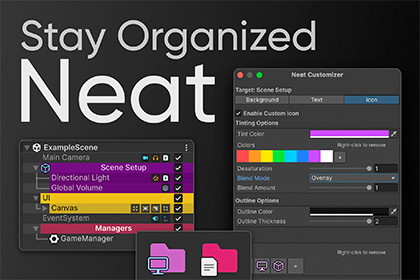
A comprehensive UI enhancement plugin. Massive, monochromatic Hierarchy or an endless sea of grey Project folders and thought, "There has to be a way" this is it.Plugin deeply integrates with Unity's IMGUI architecture to customize how the Hierarchy, Project window, and Inspector are rendered. It empowers developers and designers to visually structure their workspace by color-coding architecture, assigning semantic icons, and extending scripts with minimal boilerplate.1. Hierarchy Window EnhancementsActive Toggles: Provides a quick toggle button on the far right of every GameObject in the Hierarchy to easily enable or disable it without selecting it.Component Icons: Displays mini icons for the components attached to a GameObject (up to 5 icons). It includes a customizable blacklist (defaults to hiding Transform and CanvasRenderer) to reduce clutter.Hierarchy Tree Lines: Draws visual tree lines connecting parent and child GameObjects, making complex nested hierarchies much easier to read.Zebra Striping: Alternates the background color of rows in the hierarchy (similar to standard spreadsheet software) to improve horizontal readability.Custom Object Styling: Allows for custom background colors, text colors, font styles, and custom icons for specific GameObjects. Background colors can also be inherited by child objects.Missing Script Detection: Automatically displays a warning icon if a GameObject has a missing script component.2. Project Window EnhancementsSmart Folder Coloring: Automatically applies default color tints to common folders (e.g., Scripts are blue, Art is green, Plugins are red, Prefabs are yellow).Custom Folder Icons: Supports custom icons overlaid on folders. You can scale and position these icons (e.g., Top-Left, Bottom-Right) and apply outlines and tinting.File Details: Displays the file extension and the file size (in B, KB, or MB) directly in the Project Window list view.Prefab Validation: Scans prefabs in the project window and displays a warning icon if they contain missing component references.3. Clean & Optimize Tools (Tools > Neat > Clean & Optimize)Empty Folder Scanner: Recursively scans the Assets folder to find completely empty directories (ignoring .meta files) and provides a 1-click interface to delete them.Missing Reference Scanner: Scans the active scene's GameObjects to find missing or broken SerializedProperty object references and lists the problematic objects.4. Inspector AttributesEnhance your script inspectors using these handy built-in attributes (requires `using SprintFox.Neat;`):[Button] Attribute: Add `[Button]` above any method in your `MonoBehaviour` to expose it as a clickable button directly in the Unity Inspector. This is great for triggering debug logic or testing functions without writing custom editor scripts.Example:[Button("Spawn Enemy")]public void Spawn() { ... }[ReadOnly] Attribute: Add `[ReadOnly]` above any serialized field to display it in the inspector without allowing it to be edited. Perfect for displaying runtime debug values or strictly controlled variables.Example:[ReadOnly]public int CurrentHealth = 100;5. Customizable SettingsFeatures can be extensively configured in Preferences > Neat. You can adjust tree line thickness/opacity, zebra striping opacity, component blacklists, and toggle global features on/off.Tested on Unity 6 (macos/linux)

