






NodeFlow LogicBlock | Game Creator 2
Fullscreen Studios
$19.24
$27.49
30%OFF
(no ratings)
Jump AssetStore
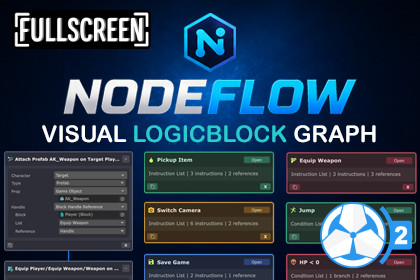
Visual node-based graph editor for LogicBlock in Game Creator 2 with visual instruction flow, list management, drag-and-drop reordering, minimap, search, and improved logic organization.NodeFlow LogicBlock - Visual Block Graph Editor for LogicBlockNodeFlow LogicBlock adds a visual node graph editor for creating, organizing, and managing LogicBlocks inside LogicBlock for Game Creator 2.LogicBlock already provides a powerful way to centralize and reuse instructions and conditions through Block assets. However, as Blocks grow larger and contain more lists, branches, and reusable systems, it can become increasingly difficult to visualize the overall structure and execution flow.NodeFlow solves that by turning LogicBlocks into a visual graph workflow where lists, instructions, conditions, and branches are easier to organize, navigate, and understand at a glance.Designed to feel familiar to anyone who has used node-based editors before, NodeFlow focuses on usability, organization, and workflow speed while still remaining highly customizable and lightweight.🎉 Launch Offer - 30% OFF for the next 2 weeks!Grab NodeFlow LogicBlock at a discounted price before the offer ends.Graph-Based Logic WorkflowCreate and manage LogicBlocks visually using connected nodes instead of navigating through nested editors and lists.Visual overview of all Lists inside a BlockEasier understanding of execution flowBetter readability for larger logic systemsOrganize logic visually instead of mentally tracking lists and hierarchiesLogicBlock Overview GraphOpening a LogicBlock displays all Instruction Lists and Condition Lists inside a dedicated graph view.Each list is represented as its own node and displays:List nameList iconList typeInstruction or branch countReference countThis provides a high-level overview of the entire Block and makes it easy to identify, organize, and navigate larger logic systems.Open Any List InstantlyLists can be opened directly from the overview graph.Simply click Open on any of the list nodes to open it and view its instructions as a visual graph.No more searching through inspectors or scrolling through long instruction lists.Visual Instruction FlowInside a List, every instruction and branch is displayed as its own node.This makes it significantly easier to:Understand execution orderVisualize branches and conditionsIdentify logic bottlenecksNavigate large instruction chainsComplex logic becomes easier to read and maintain compared to traditional list-based workflows.Visual ReorderingRearrange instruction execution order directly inside the graph.Simply drag a node above or below another node.When a valid position is detected:A visual blue highlight appearsThe instruction order updates automaticallyThis allows you to restructure logic quickly without manually moving instructions through traditional list interfaces.Search FieldSearch through all list names inside the currently opened LogicBlock.When a match is found:The graph automatically focuses on the matching nodeMatching nodes are highlighted inside the minimapIf multiple matches exist, you can cycle through all results directly from the toolbar.Useful when navigating larger Blocks containing many reusable lists.Sticky NotesCreate Sticky Notes directly inside the graph to leave comments, reminders, or organization notes.Useful for:System planningLogic documentationDevelopment notesMinimapThe minimap provides an overview of the entire graph and updates automatically as nodes are added and connected.View the full Block structure at a glanceQuickly navigate through the graphSelected nodes highlighted in blueSearch matches highlighted in yellowClicking inside the minimap instantly moves the graph view to that location.Snapping GuidelinesWhile moving nodes, alignment guides automatically appear to help organize nodes neatly.Node ThemesAssign different color themes to nodes to visually separate different systems, logic groups, or reusable workflows.Graph NavigationNavigate through graphs using familiar controls.Navigation ControlsMiddle Mouse drag to panAlt + Left Mouse drag to panMouse wheel zoomHome button to reset graph positionNode SelectionSingle selectionMulti-selectionBox selectionCtrl multi-selectCtrl + A select allNode EditingOpen Lists directly from nodesRearrange instruction flow visuallyDelete nodesContext menu actionsMulti-node editing workflowsOpen graphs by:Double-clicking a LogicBlock assetWindow > NodeFlow > LogicBlocks Graph📦 What’s Included✔ Full Source Code✔ Quick Start Guide🔗 Links🌐 Website📖 Documentation📚 Setup Guide💬 Discord (New)📅 RoadmapNodeFlow is an independent integration for Game Creator 2. It is not affiliated with or endorsed by Catsoft Studios.Visual node-based graph editor for LogicBlock in Game Creator 2Visual overview of all Instruction Lists and Condition Lists inside a LogicBlockOpen Lists directly from graph nodesVisual instruction and branch flow using connected nodesInstruction nodes display execution order visuallyDrag-and-drop instruction reordering directly inside the graphList nodes display list name, icon, type, instruction/branch count, and reference countSearch field with graph focus and node highlightingMinimap with graph overview and quick navigationSticky Notes for comments and graph organizationAutomatic node layout tools (Top Down, Left, Right)Node color schemes for visual organizationMulti-node selection and box selection supportAlignment/snapping guidelines while moving nodesContext menu tools for node managementToolbar tools for navigation and graph managementVisual home graph for managing all Lists inside a LogicBlockQuickly navigate between overview and List graphsExample content includedDocumentation and setup guide includedNo core file modifications requiredWorks alongside the default LogicBlock editor workflowRequirementsGame Creator 2LogicBlock for Game Creator 2Unity 6 or newer

