




NodeFlow Dialogue | Game Creator 2
Fullscreen Studios
$23.09
$32.99
30%OFF
(no ratings)
Jump AssetStore
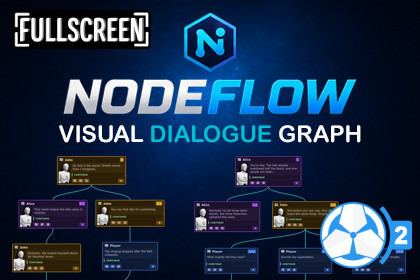
Visual node-based dialogue graph editor for Game Creator 2 Dialogue 2 with branching conversations, jump navigation, minimap tools, search features, and improved dialogue organization.NodeFlow Dialogue - Visual Dialogue Graph Editor for Dialogue 2NodeFlow Dialogue adds a visual node graph editor for creating and organizing dialogues inside Dialogue 2 for Game Creator 2.The default Dialogue 2 editor uses a list and tree-based workflow that works well for smaller conversations, but as dialogue systems become larger, more branching, and interconnected, it can quickly become difficult to follow the overall story flow and structure.You often end up spending more time navigating nested lists and tracing connections manually than actually writing dialogue.NodeFlow solves that by turning dialogues into a visual graph workflow where conversations, choices, random branches, and story jumps are easier to organize, navigate, and understand at a glance.Designed to feel familiar to anyone who has used node-based editors before, NodeFlow focuses on usability, organization, and workflow speed while still remaining highly customizable and lightweight.🎉 Launch Offer - 30% OFF for the next 2 weeks!Grab NodeFlow Dialogue at a discounted price before the offer ends.Visual Dialogue WorkflowCreate and manage dialogues visually using connected nodes instead of nested list structures.Visual dialogue flow and branchingEasier overview of story structureBetter readability for larger conversationsOrganize dialogue visually instead of mentally tracking tree hierarchiesDialogue NodesCreate different dialogue node types directly inside the graph editor.Text Nodes for dialogue and narrationChoice Nodes for branching conversationsRandom Nodes for randomized dialogue flowNodes can be connected visually to create complex dialogue structures while keeping the graph readable and easy to follow.Dialogue Story FlowDialogue nodes display how the story continues after the current node finishes.Flow types:ContinueExitJumpTagged nodes are displayed directly inside node headers, making important story points easier to identify and navigate.When selecting nodes with Jump flow:Preview lines visualize jump connectionsClicking the jump label automatically focuses the target nodeTagged story flow becomes easier to track visuallySearch FieldSearch through all node titles and dialogue content inside the currently opened graph.When a match is found:The graph automatically focuses on the matching nodeMatching text inside the node is highlightedMatching nodes are highlighted inside the minimapIf multiple matches exist, you can cycle through all results directly from the toolbar.Useful when navigating larger dialogue systems or branching story paths.Sticky NotesCreate Sticky Notes directly inside the graph to leave comments, reminders, or organization notes.Useful for:Story planningDialogue notesWriter commentsMinimapThe minimap provides an overview of the entire graph and updates automatically as nodes are added and connected.View the full dialogue structure at a glanceQuickly navigate through the graphSelected nodes highlighted in blueSearch matches highlighted in yellowClicking inside the minimap instantly moves the graph view to that location.Layout & Organization ToolsNodeFlow includes tools to help keep graphs readable and organized.Automatic LayoutsArrange nodes automatically in different directions:Top DownLeftRightLayout operations can be applied to single or multiple selected nodes.Snapping GuidelinesWhile moving nodes, alignment guides automatically appear to help organize nodes neatly.Node ThemesAssign different color themes to nodes to visually separate dialogue sections, story beats, or conversation types.Graph NavigationNavigate through graphs using familiar controls.Navigation ControlsMiddle Mouse drag to panAlt + Left Mouse drag to panMouse wheel zoomHome button to reset graph positionNode SelectionSingle selectionMulti-selectionBox selectionCtrl multi-selectCtrl + A select allNode EditingAdd connected subnodesDelete nodesContext menu actionsLink and unlink nodesRearrange dialogue flowTag dialogue nodesSeamless IntegrationNodeFlow works directly with Dialogue 2 from Game Creator 2.No core file modificationsNo patching requiredWorks directly with Dialogue ComponentsOpen graphs by:Window > NodeFlow > DialogueSelecting a GameObject with a Dialogue Componet📦 What’s Included✔ Full Source Code✔ Quick Start Guide✔ Examples🔗 Links📖 Documentation📚 Setup Guide💬 Discord (New)📅 RoadmapNodeFlow is an independent integration for Game Creator 2. It is not affiliated with or endorsed by Catsoft Studios.Visual node-based graph editor for Dialogue 2 in Game Creator 2Create and organize dialogues using connected dialogue nodesSupport for Text Nodes, Choice Nodes, and Random NodesDialogue story flow support with Continue, Exit, and Jump flow typesTagged dialogue nodes for jump navigationVisual jump preview lines between connected dialogue nodesMinimap with graph overview and quick navigationSearch field with node highlighting and graph focusAutomatic node layout tools (Top Down, Left, Right)Node color schemes for visual organizationSticky Notes for comments and graph organizationMulti-node selection and box selection supportAlignment/snapping guidelines while moving nodesContext menu tools for node managementToolbar tools for navigation and graph managementAutomatically loads Dialogue Components from the sceneExample content includedDocumentation and setup guide includedNo core file modifications requiredWorks alongside the default Dialogue 2 editor workflowRequirementsGame Creator 2Dialogue 2 for Game Creator 2Unity 6

