






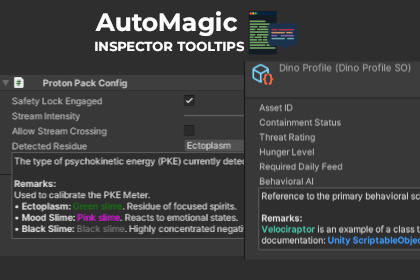
AutoMagic Inspector Tooltips automatically turns your C# code comments into rich, formatted tooltips directly inside the Unity Inspector.AutoMagic Inspector Tooltips is a editor tool designed to make your documenting your components easier. It automatically places your C# comments right where you need it: inside the Unity Inspector It turns the standard C# comments you write into rich, readable popups. This allows you to clearly and easily explain your components to designers, artists, and other developers on your team so they can understand exactly what each setting does.Key FeaturesZero Setup: Works automatically on MonoBehaviour and ScriptableObject fields without custom inspectors. If your script doesn't have a custom inspector, your comments will simply show up.Smart Resolution: The tool looks for documentation in a specific order: first the Unity [Tooltip] attribute, then XML /// comments, and finally standard // or /* */ comments.Rich Text Support: Use bold, italics, bulleted lists, and even data tables to organize your component documentation.Interactive Mode: By holding Ctrl (or Cmd on Mac), tooltips lock in place. This allows you to select and copy text directly from the popup or click on links.Clickable Hyperlinks: Use standard XML tags to link to external websites (href) or jump directly to other C# classes (cref) in your project.Component Headers: You can document a class itself. Add a summary above your class definition to show a tooltip when hovering over the script name in the Inspector.Custom Editor & Window API: If you write your own inspectors or editor windows, you can use the same system by inheriting from RichTooltipBaseEditor or using the static RichTooltipSystem.Built with itself: The tool’s own Preferences window is built using its own API, demonstrating how you can use it to enhance your custom tools and windows.Samples: Includes samples that shows you how to use each feature.Supported XML TagsThe parser is built to handle the Standard C# Recommended XML Tags and maps them to Unity Rich Text: & for descriptions. (Bullet, Numbered, or Table) for organized data. & for inline or block code styling. & (Automatically moved to a dedicated section at the bottom of the tooltip). or hex codes to highlight safety warnings or critical settings. Note: this is a custom addition, IDEs like Visual Studio will not display the color in your code.LimitationsCustom Inspectors: The tool works automatically on default inspectors. If you’ve written a custom editor for a script, you’ll need to inherit from RichTooltipBaseEditor to enable the rich tooltips. For more complex inspectors elements you may have to wrap them in DrawCustomElement to handle the tooltips.Code Linking: Using only works for source code within your project. It cannot link to compiled DLLs or internal Unity classes (like Rigidbody). For those, it's better to use a web link to the official documentation.Namespace Resolution: When linking to code, the system resolves the first matching class name it finds. If you have multiple classes with the same name in different namespaces, it may not always point to the specific one you intended.Unity Priority: If a field has a standard Unity [Tooltip] attribute, the system defaults to that and ignores any XML comments to avoid conflicting information.Supports Unity 2021.3 LTS and newer.Fully customizable colors and hover delays via Unity Preferences.

