





ScriptableObject Workbench - QuetzaCore
Vighorus Games
$9.99
$15.00
33%OFF
(no ratings)
Jump AssetStore
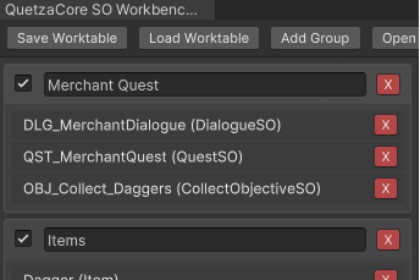
QuetzaCore SO Workbench centralizes ScriptableObject management. Pin ScriptableObject references to one convenient view, edit via a built-in Inspector tab, and eliminate constant folder navigation.Built on Unity 6QuetzaCore SO Workbench is a Unity editor tool that provides a centralized panel for managing your current task's Scriptable Objects. It allows developers to "pin" references to ScriptableObjects into a single, convenient view, for easy editing via a built-in Inspector tab, eliminating the need for constant navigation between different project folders.Understanding the Terminology:QuetzaCore SO Workbench: This is the name of the overall Unity editor tool itself – your dedicated environment for Scriptable Object management.Worktable: This refers to the customizable panel within the Workbench where you actively "pin" and edit a curated set of Scriptable Objects for a specific task. You can save and load different "Worktables."Use case example: You're working on a quest, event or task that uses several different ScriptableObjects. You can pin them to your active Worktable, edit them directly through the Workbench's integrated Inspector, and have them all easily accessible in one location while you work.Once you're done, you can simply 'Save Worktable' or 'Clear Worktable' and move on to the next task.You could have a Worktable for each of your Quests, Missions, Events or anything that is a collection of ScriptableObjects.This streamlines batch editing and multi-SO management, a common pain point for developers.Want to keep a specific setup available for later?The QuetzaCore SO Workbench allows you to save and load Worktables which will persist even if you close Unity. You are in control of when to clear your active Worktable.Think of the QuetzaCore SO Workbench as your dedicated, persistent workspace. Within it, you create and manage individual 'Worktables'—like an empty table where you place the parts (Scriptable Objects) you need for your current task. You perform the necessary work with these parts, and when your task is complete, you can clear the table and proceed to the next.FEATURESScriptableObject Focus: Specifically designed for editing ScriptableObject-derived assets, accepting only ScriptableObject assets.Live Editing: Selecting a pinned asset shows it directly in the Inspector for immediate editing via a built-in Inspector tab.Unified Asset Panel: A single, dockable editor window to hold references to ScriptableObject assets. Adjustable panel and window size.Reference-Based: Pinned items are shortcuts to the original assets, ensuring your project's folder structure remains unchanged.Adding Assets to the Worktable:Drag-and-Drop Pinning: Easily add ScriptableObject assets to the Worktable by dragging them from the Project window.Context Menu Integration: Right-click ScriptableObject assets anywhere in Unity to "Pin" them directly to the Worktable.Search: Search window allows you to find any ScriptableObject in your project. Search by filter also available.Asset Organization:Asset Grouping: Create collapsible groups within the Worktable to organize assets by feature or task.Drag-and-Drop Organizing: Drag assets from one group to the other to keep your Worktable organized.Group reordering: Drag groups to reorder them in the WorktableAsset reordering within groups: drag assets up/down to change their order within a groupWorktable Management: Save/Load or Clear the current Worktable.Worktable Persistence: The layout and contents of your Worktable are saved and reloaded between Unity sessions.SUPPORT AND FEEDBACKContact me at support@vighorusgames.com, on Reddit or by DiscordTechniques Used:My primary use of AI/ML has been through the application of large language models (LLMs) for code generation and refinement. Specifically, I leveraged these models as a powerful co-developer and assistant in the programming workflow.How AI/ML Was Leveraged:The AI/ML models were integrated into the development process in the following ways:Code Generation: AI assisted in generating foundational code snippets, boilerplate for various functionalities within the asset. This accelerated the initial development phase.Problem Solving & Debugging: The AI was used to help identify potential issues, suggest solutions for complex programming challenges, and assist in debugging by analyzing error messages and proposing fixes.It's important to note that while AI contributed to the coding process, all generated code was thoroughly planned, reviewed and tested by a human developer to ensure quality, functionality, and adherence to project standards. The AI acted as an intelligent assistant, augmenting the development workflow rather than autonomously creating the entire codebase.

