






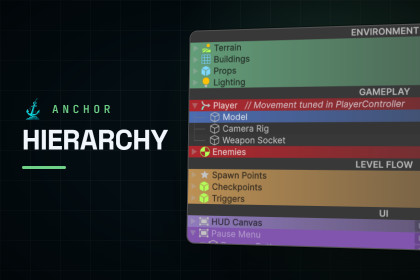
Turn the Hierarchy into a readable map of your scene: colored rows, headers, component icons, a floating mini inspector, hover shortcuts and a scene switcher.Stop scrolling through a flat list. Read your scene at a glance.Anchor Hierarchy works inside Unity's own Hierarchy window. Color rows and whole branches, turn objects into section headers, see every object's components on its row, and open any component in a small floating inspector, all without leaving the Hierarchy.Colors, icons and notes add no components and write nothing into your scenes. They live in a small asset beside each scene, so they go through version control without touching the scene file. Every feature has its own switch, and turning the module off gives you Unity's Hierarchy back exactly as it was.🗺️ SEE YOUR SCENE AT A GLANCEFull-width row colors, as a gradient or a solid fill.Icons from Unity's built-in set or your own PNGs, and automatic component icons on rows without one, so a camera row looks like a camera.Section headers: name an object --- Enemies --- or // Enemies and it becomes a full-width banner.A note on any row, tree connector lines, and zebra striping.🎨 COLOR IT IN SECONDSAlt-click any row to open the palette. Hover a swatch and the row previews it before anything is saved; hold Alt and the preview covers the whole branch. Every color, icon and note change can be undone.🧩 EVERY COMPONENT, ONE CLICK AWAYEach row shows its components' icons along its right edge, trimmed to what fits beside the name. Alt-click one and that component opens in a small floating inspector with its real editor, custom editors included. Pin a few side by side and tune them together.⌨️ HANDS ON THE KEYBOARDPoint at a row and press E to expand or collapse it, Shift+E to isolate its branch, Shift+A to toggle it active, or F to frame it in the Scene view. No clicking to select it first. From any window, Shift+Z collapses the whole Hierarchy and expands it again, and it can be rebound in Unity's Shortcuts window.🧭 MOVE AROUND BIG PROJECTSA scene switcher on every scene header: your Build Settings scenes, favorites pinned, open ones in bold. Click to open one, Shift+click to add it alongside, or swap a single scene out of a multi-scene setup while it keeps its place.A Bookmarks panel with a History column of your recent selections, and an optional bookmark bar along the bottom of the Hierarchy.Collapse or expand everything from the toolbar. Its buttons fold into one menu when the window gets narrow.✨ THE DETAILS THAT ADD UPSubtree statistics on hover: children, components, triangles and vertices below any object.Tag and Layer columns you click to change, with Undo.An inline activation checkbox, on the left or right, always shown or on hover.Drop a script on the empty space below the last row to create a GameObject with that component.In a narrow window, the columns step aside instead of covering names.⚙️ MAKE IT YOURSEvery feature has its own switch under Preferences › Anchor › Hierarchy, down to column widths and how many icons the minimap shows.✅ WORKS WITHUnity 2022.3 LTS and Unity 6, in any render pipeline. On Unity 6.6 and later, turn on Use Legacy Hierarchy in Project Settings > Editor — that is the window Anchor Hierarchy draws in.📋 ALL FEATURESRow colors: gradient or solid, on one row or a whole branch.Row icons: Unity's built-in icons or your own PNGs, with search.Automatic component icons on rows without an icon.Keep Prefab Icons: prefab instances keep Unity's prefab icon.Icon modes: show all, hide Unity's default icons, or hide them all.Header rows: name an object --- Label --- or // Label.Row notes: a short comment on any row.Text that stays readable on every row color.Tree lines from parents to children.Zebra striping in two tints you choose.Component minimap along each row's right edge.Mini inspector: Alt-click a component icon to edit it in place; pin several.Subtree statistics on hover: children, components, triangles and vertices.Activation checkbox: left or right, always or on hover.Tag and Layer columns: click to change, with Undo; compact or fixed grid, always or on hover.Hover shortcuts: E, Shift+E, Shift+A and F.Collapse All: a toolbar button, or Shift+Z from any window.Scene switcher on every scene header: favorites, drag to reorder, open, add alongside or replace one scene, or dock it as a window.Bookmarks and History panel.Bookmark bar along the bottom of the Hierarchy.Toolbar buttons that fold into one menu when the window is narrow.Script drop: drop a script below the last row to create a GameObject with it.Works in every open Hierarchy window.A switch for every feature in Preferences › Anchor › Hierarchy.💬 SUPPORTcontact.anchorstudios@gmail.com · anchorstudiosdev.github.ioCOMPATIBILITYUnity 2022.3 LTS and Unity 6, from 6.0 LTS through 6.6.Compiled against 2022.3.62f3, 6000.0.84f1, 6000.3.24f1 and 6000.6.2f1.Unity 6.6 and later: turn on Edit › Project Settings › Editor › Use Legacy Hierarchy. Anchor Hierarchy draws in Unity's legacy Hierarchy window, which 6.6 no longer opens by default.Render pipelines: Built-in, URP, and HDRP. It is editor-only, so the pipeline doesn't matter.Editor on Windows, macOS and Linux.Enter Play Mode with domain reload disabled is supported.No Asset Store or package dependencies.WHAT'S IN THE PACKAGEFull C# source, no DLLs.Two editor-only assemblies, Anchor.Core and Anchor.Hierarchy. Nothing ships in your player build.A README covering every feature and setting.It installs to Assets/AnchorStudios/AnchorEditorSuite/, and the folder can be moved.WHERE IT KEEPS DATAColors, icons and notes: one asset per scene, at /Anchor/Hierarchy/.AnchorHierarchy.asset, never in the scene file. Commit it with the scene and your team sees the same Hierarchy. Saving the scene drops the data of objects you deleted, and deletes the asset once nothing is left.The palette's colors and icons: one asset, created on first use inside the package folder.Preferences: per user, in EditorPrefs.Bookmarks, history and scene favorites: per user and per project, in the project's UserSettings folder.DOCUMENTATIONhttps://anchorstudiosdev.github.io/hierarchy/ — also in the package, at Hierarchy/Editor/README.md.TECHNICAL NOTES⚠️ Unity 6.6 and later open the new Hierarchy window by default. It never calls the Hierarchy row callback that Anchor Hierarchy draws through, so turn on Use Legacy Hierarchy in Project Settings > Editor to use the legacy window. While the new window is open, Anchor Hierarchy reminds you of this once per session in the Console. The Preferences > Anchor > Hierarchy page shows the same reminder, with an Open Project Settings button.Rows are drawn through Unity's Hierarchy row callback; the panels and windows use UI Toolkit.The hover shortcuts are fixed keys and need the Hierarchy window focused. Shift+Z (Collapse All) works from any window and is registered with Unity's Shortcut Manager, so it can be rebound. One switch turns them all on or off.Changes to colors, icons, notes, tags, layers and active state can all be undone.Anchor products share one Core folder and are safe to install together.AI assistants were used as development tooling: code assistance, code review, debugging, optimization and documentation. All architecture and design decisions are my own, and every change was reviewed, compiled and tested by me in the Unity Editor before release.