

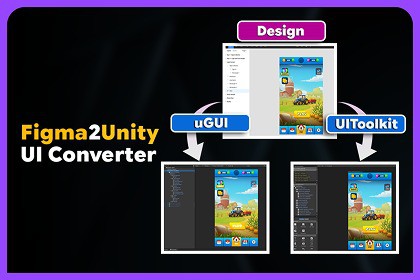
Import Figma designs into Unity as native uGUI prefabs or UI Toolkit UXML/USS. Convert layouts, text, images and vectors quickly using live Figma files or offline JSON in one Editor workflow.Turn your Figma designs into working Unity UI in minutes instead of rebuilding every screen by hand.Figma To Unity UI Converter is a Unity Editor plugin that imports Figma files directly into your project as either uGUI prefabs using Canvas/RectTransform or UI Toolkit documents using UXML/USS.Import from a Figma URL, file key, or saved JSON export, choose the frames you need, select the target UI system, and convert supported layout, styles, text, images, and vector shapes into Unity-ready output.The workflow is designed for iteration. Fetch a file's frames once per session, search and re-select what you need, re-import as the Figma design changes, and choose uGUI or UI Toolkit independently for each import.Key FeaturesImport Figma files as uGUI prefabs or UI Toolkit UXML/USSImport from a live Figma URL/file key or a previously saved JSON fileSession-cached fetching to reduce unnecessary Figma API requestsFrame picker with search, per-page grouping, and selective importRe-import selected frames as designs evolveAutomatic vector handling with native USS shapes where possible, Painter2D fallback, and SVG/PNG fallback based on Unity version capabilitiesFont resolution using in-project fonts first, then Google Fonts with an API keyConfigurable fallback fonts for uGUI and UI ToolkitDrag-and-drop font mapping that creates TextCore and TMP font assets togetherAdjustable image export scale from 1x to 4xOptional Canvas resolution override for uGUI importsJSON and Markdown conversion reports for generated files, assets, skipped hidden nodes, and unresolved fontsFive predefined Editor themes plus fully custom, savable themesDemo content for both uGUI and UI Toolkit workflowsImport WorkflowAdd a Figma Personal Access Token in Settings > Authentication for live Figma imports.Open the Import window and load frames from a Figma URL, file key, or saved JSON export.Choose the target output: uGUI or UI Toolkit.Search, browse, and select the frames you want.Import the selected frames into your project.uGUI OutputUse the uGUI target for Canvas-based runtime interfaces.Generated content can include:Canvas/RectTransform prefab outputText and image componentsExported PNG/SVG image assets where supportedConfigurable Canvas resolutionTextMeshPro font assets through the font mapping workflowUI Toolkit OutputUse the UI Toolkit target for UIDocument workflows and Editor tooling.Generated content can include:UXML documentsUSS stylesNative USS shape output where supportedPainter2D fallback for shapes USS cannot express directlyTextCore-compatible font assets through the font mapping workflowFonts, Images & VectorsThe importer uses a configurable font provider chain: in-project fonts first, then Google Fonts when an API key is configured, with a default fallback font available per target. Vector output is handled automatically according to the target Unity version. Where supported, the converter can use native vector output; unsupported cases fall back to rasterized PNG automatically.Image export scale can be adjusted from 1x to 4x depending on the target quality and resolution requirements.Offline JSON WorkflowSaved JSON exports can be imported without making a live Figma API request at import time. This is useful for offline workflows, archived design snapshots, and teams that prefer to separate design export from Unity import.A companion Figma Exporter plugin is sold/distributed separately for generating these offline JSON exports directly from Figma.Included Demo ContentDemo scene for the uGUI workflowDemo scene for the UI Toolkit workflowAdditional SVG demo content for supported Unity versionsFigma To Unity UI Converter is distributed as compiled managed assemblies (.dll). Source .cs files are not included.Please review the included documentation and known limitations before purchasing to confirm the workflow matches your project's requirements.Compatibility & RequirementsUnity Version: Unity 2022.3 LTS or newerRendering Targets: uGUI and UI Toolkit, selectable per importuGUI Requirement: TextMeshPro Essential ResourcesPackage Dependency: Newtonsoft.Json via Unity Package ManagerPackage ID: com.unity.nuget.newtonsoft-jsonLive Figma Import: Requires a Figma account and a Personal Access TokenOffline JSON Import: Does not require a live Figma API connection at import timeFramework & WorkflowAsset Type: Unity Editor & Runtime frameworkEditor Workflow: Import and Settings windowsTarget Selection: uGUI or UI Toolkit selected per importFrame Selection: Searchable frame picker with per-page groupingFetching: Session-cached frame loadingRe-import: Supported as source designs changeThemes: Five predefined themes plus custom, savable themesImport SourcesFigma URLFigma file keySaved JSON exportGenerated OutputDepending on the selected target and imported content, output can include:uGUI prefabsUXML filesUSS filesPNG image assetsSVG image assets where supportedTextCore font assetsTextMeshPro font assetsOptional JSON conversion reportsOptional Markdown conversion reportsGenerated files are written to a configurable output folder under Assets/.FontsIn-project fonts are checked firstGoogle Fonts can be used with an API keyConfigurable fallback font per targetDrag-and-drop font mapping is supportedFont mapping can create both TextCore and TMP font assetsVector & Image HandlingNative USS shapes are used where possiblePainter2D is used as a fallback for shapes USS cannot express directlySVG support is detected according to the target Unity version's capabilitiesUnsupported vector cases fall back to rasterized PNG automaticallyImage export scale is adjustable from 1x to 4xOptional Canvas resolution override is available for uGUIIncluded ContentuGUI demo sceneUI Toolkit demo sceneAdditional SVG demo scene for supported Unity versionsIncluded documentationPackage & Source CodePackage Format: Compiled managed assemblies (.dll)Source Code: Source .cs files are not includedDocumented functionality is exposed through the Unity Editor menus and plugin windowsKnown LimitationsAutomatic rotation is not supported; positioning is absoluteLayout Groups are not auto-createdMasks are not auto-createdButtons are not auto-createdText and image components are created where supportedHidden Figma nodes are always skipped during importJSON File import reflects the Figma file state at the time the JSON was exportedAsset duplication detection is not currently includedSee the included documentation for the complete list of limitations and workflow details.Support and FeedbackWe value your feedback and are here to help!Reach out to 300 Mind via our contact page, email us directly, or join our Discord community for support, updates, and discussions.Our team is ready to help with any questions you might have about setup, implementation, or customization.