

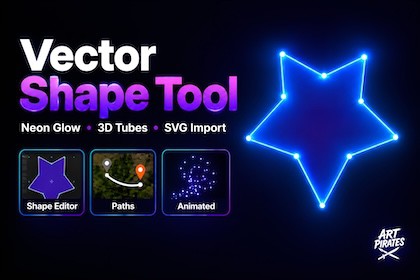
Neon Glow, SVG & 3D Tubes for UnityTurn flat vector shapes into glowing neon lines and real 3D tubes, directly inside the Unity Editor. The built-in glow shader is self-contained, so no bloom, HDR camera or post-processing is required.Draw a shape once with Bezier points, then choose the output you need: mesh, sprite, UI graphic, neon line, navigation path, particle emitter, 2D collider or sprite mask. Import SVG artwork, and animate points and tangents with Unity's animation tools and Timeline.Works with: Unity 2020.3 or later (tested on Unity 6)-Main Features-One component, many outputsSwitch the same shape between multiple output modes from a single dropdown:RendererSprite RendererUI GraphicUI Raw ImageLineParticlePolygon Collider 2DEdge Collider 2DSprite MaskOptional SpriteShape integrationThe tool automatically manages the required Unity components for each mode, such as MeshFilter, MeshRenderer, LineRenderer, RawImage, PolygonCollider2D, EdgeCollider2D, SpriteMask, or SpriteShapeRenderer.Scene View shape editingEdit shapes visually inside the Scene view:Select, move, add, and delete pointsEdit Bezier tangents directlyUse Corner, Smooth, and Symmetric point modesMulti-select pointsBox-select pointsScale, move, and rotate the entire shape with a bounding boxUse optional grid snappingQuickly switch between shape presetsBuilt-in presets include Rectangle, Circle, Rounded Rectangle, Triangle, Pentagon, Hexagon, and Star.Neon line and 3D tube renderingThe Line output is designed for stylized outlines, UI-world hybrids, effects, paths, and gameplay visuals.Line features include:Solid color or gradientLooping gradients for closed shapesFlat ribbon renderingCamera-facing billboard linesReal 3D tube mesh renderingAdjustable tube side countDashed line renderingAnimated dash flowSoft dash capsWave deformation using sine or Perlin-style randomnessKeyframeable line width, dash, density, and wave properties-Built-in glow shader-Vector Shape Tool includes a self-contained glow shader for neon-style lines and tubes. No bloom, HDR camera, or post-processing is required.Glow controls include:Additive or Alpha Blended modeIntensityEdge softnessWhite-hot core amountGradient-driven glow colorAutomatic glow for 3D tubesThis makes it useful for dark-scene neon effects, futuristic UI, route visualization, magic circles, hologram lines, sci-fi panels, and stylized gameplay indicators.Floor light spill and real point lightsFor stronger scene integration, glowing lines can also create a soft floor wash and optional real-time point lights along the shape.Supported effects:Floor Light Spill for closed shapes or open pathsInherited or custom floor glow colorAdjustable spill intensity and softnessOptional real Point Lights distributed along the shapeLight count, range, height, and glow-based intensity controlsThis lets a line not only look bright, but visually influence the environment around it.Navigation paths and trajectory arcsA shape can become a navigation route with one click using Configure As Path.Path features include:Dashed glowing route setupGround conforming over collider surfacesWaypoint markersEndpoint dotsMarker color, size, and lift controlsSurface lift to prevent z-fightingRuntime path APIs for dynamic waypointsBallistic trajectory arc modeOptional ground landing point for arcsUse it for strategy-game routes, RPG movement paths, tower-defense targeting, tactical markers, aiming previews, tutorial arrows, or navigation visualization.Particle emission from shapesAny Line output can be baked into a CPU-readable mesh and used as a Particle System emission shape.Particle workflow:Enable Bake Mesh For ParticlesAssign a Particle SystemThe generated mesh is automatically fed into the Particle System Shape moduleParticles inherit the shape colorWorks with flat ribbons and 3D tube meshesMultiple Vector Shape components can share the same Particle System. The tool combines all contributors into one mesh in the particle system's local space.To keep emission fair, each different component receives its full configured emission amount, and the emission budget is balanced equally across contributing components. This prevents large or dense shapes from unintentionally consuming the entire particle budget.SVG import and layered shapesImport .svg files directly into a Vector Shape component.SVG support includes:Import from fileReload the last imported sourceSingle-element SVG import into the current shapeMulti-element SVG import as layered child shapesPer-layer visibilityPer-layer colorLayer reorder controlsIndependent styling per layerGlow, dash, and 3D tube support per layerMulti-element SVGs become a layered shape host, letting you manage all sub-shapes from one inspector while still styling each layer independently.UI output for Canvas workflowsVector Shape Tool supports two UI output modes.Graphic mode creates a live MaskableGraphic mesh on a Canvas. It supports UI masking, raycasting, layout behavior, and works as a drop-in shape graphic for Unity UI.Raw Image mode rasterizes the shape into a Texture2D inside the RectTransform. It is useful when you want texture-style UI output while still editing the source shape inside Unity.Both UI modes include automatic RectTransform fitting. Width, height, and anchors are managed by the tool so the shape stays properly framed while you edit it.Animation and TimelineVector Shape Tool is built for animation workflows.You can:Enable Animatable modeKeyframe individual point positionsKeyframe in/out tangentsMorph between shape presetsAnimate line widthAnimate dash length and gapAnimate dash density and soft capsAnimate wave amplitude, wavelength, speed, phase, randomness, and axesBlend between VectorShape assets on a dedicated Timeline trackThis is useful for morphing icons, animated UI, spell effects, path reveal animations, stylized motion graphics, and shape-based VFX.Collider and mask outputsThe same shape data can also drive gameplay and rendering support components:PolygonCollider2D for filled 2D collisionEdgeCollider2D for edge-based collisionSpriteMask for masking SpriteRenderersCollider paths update automatically when the shape changes.Production-focused designThe tool is designed to be practical in real projects:Reusable buffersVersion-guarded updatesAutomatic component managementProper resource cleanupEditor save-guard for particle emission scalingGraceful fallbacks when optional targets are missingUnity 2020.3 or later support, tested on Unity 6-Typical Use Cases-Vector Shape Tool is useful for:Custom vector icons inside UnityRuntime or editor-authored 2D shapesNeon signs and sci-fi linesGlowing 3D tubesMagic circles and stylized spell effectsUI panels, masks, indicators, and animated graphicsNavigation paths and waypoint routesBallistic trajectory previewsParticle emission from curves and outlinesSVG-based layered artShape morph animationTimeline-driven vector transitions2D colliders based on editable Bezier outlinesQuick Start:Add the Vector Shape component to a GameObject.Click Create New Shape Asset.Choose an output mode such as Renderer, Line, Graphic, Raw Image, Particle, Collider, or Sprite Mask.Click Edit Shape.Move points and Bezier tangents in the Scene view.Style the result using the selected output settings.For paths, switch to Line output and click Configure As Path.For particles, enable Bake Mesh For Particles and assign a Particle System.For UI, place the object under a Canvas or use the built-in Canvas wrapping option.For SVG art, use Import SVG from the inspector.Requirements:Unity 2020.3 or laterTested on Unity 6Optional: Unity 2D SpriteShape package for SpriteShape outputNotes:The glow shader is self-contained and does not require post-processing.Ground conforming requires a Conform Target with colliders.UI modes require the object to be under a Canvas.SpriteShape output requires adding the VECTOR_TOOL_SPRITESHAPE scripting define after installing Unity's 2D SpriteShape package.Support:For questions, bug reports, or feature requests, please contact us through the Unity Asset Store page or leave a review.