



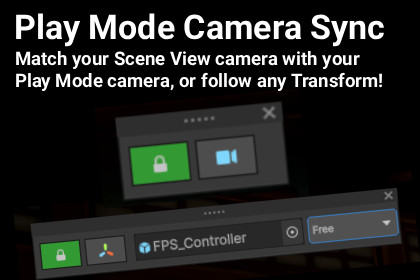
Play Mode Camera Sync automatically synchronizes your Scene View camera with your Game camera or to any transform during Play Mode, giving you the perfect view for debugging, tuning, and iterating.Effortlessly sync your Scene view with your game camera during Play Mode!Play Mode Camera Sync automatically synchronizes your Scene view camera with your game camera during Play Mode, and allows you to follow any GameObject in real time, giving you the perfect view for debugging, tuning, and iterating!Automatic Camera FollowingScene view automatically tracks Camera.main during Play ModeMatches position, rotation, and field of viewSupports both perspective and orthographic camerasZero setup required!Transform Follow ModeFollow any GameObject with a single Ctrl+Shift+ClickPerfect for debugging character controllers, AI agents, and vehiclesView presets: Front, Back, Left, Right, Top, Bottom, and FreeAdjust viewing distance with mouse scroll wheelFloating Overlay ControlsCompact, draggable control panelSwitch between Camera and Transform modes instantlyDrag-and-drop GameObject selectionRemembers position and settings between sessionsPerfect ForDebugging character movement and animationsTuning camera systems and shake effectsFollowing AI agents to understand behaviorInspecting vehicle physics and handlingMonitoring gameplay from specific viewpointsTry our other tools Clever Clicker and Scene Layers!Editor-Only Tool – Does not affect runtime builds.Compatibility:Unity 2021.3 LTS and newer (tested up to 6000.1.x).Supports Built-in Render Pipeline, URP, and HDRP.Platforms: All (Windows, macOS, Linux) - editor functionality only.Dependencies: None - no external packages required.Installation:Import the package.Open Tools → Play Mode Camera Sync → Toggle OverlayOpen Tools → Play Mode Camera Sync → Settings to change settingsCtrl+Shift+Click an object to follow it

