





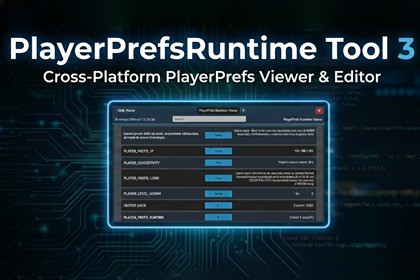
PlayerPrefsRuntime Tool is a Unity plugin that allows you to retrieve and edit all
PlayerPrefs at runtime across multiple platforms, including Android, iOS, Windows, and macOS.PlayerPrefsRuntime Tool is a Unity plugin that allows you to retrieve and edit allPlayerPrefs at runtime across multiple platforms, including Android, iOS, Windows, andmacOS (with Windows/macOS also supported in the Unity Editor). This tool is invaluable fordebugging, analytics, testing, and managing player preferences within your Unity projects.DependenciesPlayerPrefsRuntime Tool is using a json parser: "com.unity.nuget.newtonsoft-json": "3.2.1".FeaturesCross-Platform Support: Compatible with Android, iOS, Windows, and macOS (plus Windows/macOS Editor).Runtime Access: Retrieve all PlayerPrefs as a dictionary directly from the device/build (or editor storage on Windows/macOS).Live Editing: Edit, save, and delete PlayerPrefs entries directly from the runtime UI.Logging: Display all PlayerPrefs data in the Unity Console for debugging purposes.Interactive UI Viewer: Visual interface with search, sorting, detailed entry inspection, and edit mode.Type Validation: Automatic validation for Int, Float, and String values with error feedback.Extensible Architecture: Easily extendable to support additional platforms or functionalities.UI Viewer FeaturesThe PlayerPrefsRuntime Tool includes a comprehensive visual UI viewer that provides:Real-time Search & FilteringLive search across key names, types, and valuesCase-insensitive filtering with instant resultsClear button to reset searchShows filtered count vs total count in headerSorting CapabilitiesToggle between "Sort: Name" and "Sort: Type" modesSecondary sorting (type within name, or name within type)Alphabetical ordering using ordinal comparisonVisual Design & ThemingDark theme with accent colors (blues, cyans)Alternating even/odd row colors for readabilityColor-coded type badges (Int, String, Float)Safe area support for mobile devicesInteractive FeaturesClick on any entry to view detailed information in a dialogToggle edit mode with the "Edit" buttonModify Int, Float, and String values directlySave changes with the "Save" buttonDelete entries with the "Delete" buttonReal-time validation with error messagesAutomatic UI refresh after saving or deletingClose button to hide the viewer and clean up resourcesSort button to toggle between sorting modesSearch field with placeholder textNotes & LimitationsThe tool is compiled conditionally behind the PLAYERPREFS RUNTIME TOOL define constraint (see PlayerPrefsRuntime.asmdef). If the define isn't set, the API won't exist in your project.Windows reads PlayerPrefs from the registry (HKCU\Software\{company}\{product} in player, and HKCU\Software\Unity\UnityEditor\{company}\{product} in editor) and strips Unity's hashed suffix from keys (e.g. _h123). Returned values are best-effort decoded and may include int, long, float, string, or byte[].Android reads SharedPreferences from ${Application.identifier}.v2.playerprefs and supports int, float, and string (other types are stringified).iOS exports only NSString/NSNumber values from NSUserDefaults (other types are skipped). macOS runtime reads ~/Library/Preferences/.plist and serializes it to JSON; non-JSON plist types can cause an empty result. macOS Editor parsing supports XMLand binary plists (via plutil).Platform-Specific Features:Android:Accesses SharedPreferences using package nameHandles URI-encoded keys and valuesSupports standard int, float, string typesiOS/macOS:Native JSON export via P/Invoke (PlayerPrefsRuntimePlugin.mm)Native plugins located in Assets/DmytroUdovychenko/PlayerPrefsRuntimeTool/Plugins/iOS/ and Plugins/macOS/iOS exports only strings/numbers from UserDefaults; macOS runtime depends on plist values being JSON-serializableWindows:Registry-based access at Software\{company}\{product}Custom binary parsing for Unity's PlayerPrefs formatBest-effort decoding: int, long, float, string, and sometimes byte[]

